Written documentation for the Outline Project
Written Docs
In the Major Learning Outcomes, Content, and Instructional Methodology sections, you are editing content that conforms to an outline format. The Outline Project has a built-in editor to help you create a well-formed outline.
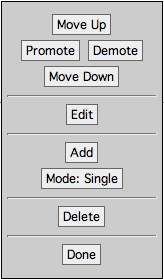
Each line of your outline is treated as its own element. You can highlight that element by clicking on it. Doing so brings up an outline editing toolbar, pictured at right.
There are buttons on the outline editing toolbar to:
-
• Move an item up or down in the outline
-
• Promote or demote an item (move it to a higher or lower level)
-
• Add or delete an item
-
• Edit an item
Next to the Add button you’ll see a Mode button. You can add items using one of two modes:
-
• Use Single mode to add just one item. You can click on the Done button (or just hit return) when you are finished entering the text of the item.
-
• If you have a lot of items to enter, use Continuous mode. Now, when you’re done entering the text for an item, you can hit return to start entering the next item. Click on the Done button when you’ve finished entering all text.
There are several shortcuts you can use while editing these sections:
-
• In addition to clicking on the Edit button to edit an item, you can just double-click on it.
-
• As mentioned above, you can just use return when you’re done entering or editing an item.
-
• You can use the move up/down or promote/demote buttons with an item selected, or while you’re editing an item.

Wednesday, February 28, 2007
Working with the Outline Editor